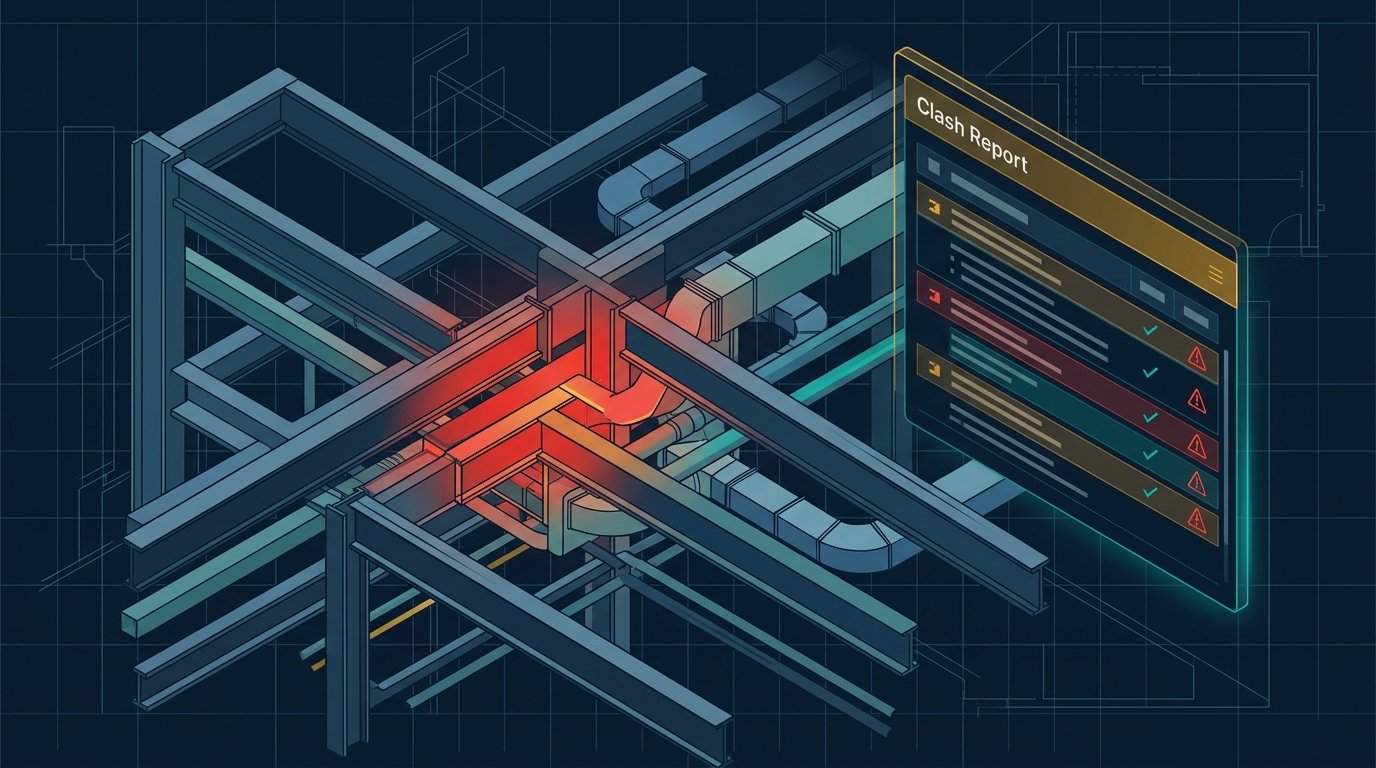
Clash detection is meant to save time and money by catching conflicts between structural, architectural, and MEP models before they reach the construction site. But a poorly run clash detection process can do the opposite: thousands of meaningless clashes, missed real conflicts, and coordination meetings that go nowhere.
Most of these problems come from the same handful of mistakes. This guide covers the most common Revit and Navisworks clash detection errors in BIM coordination, and how an experienced BIM coordination team fixes each one.
Why the Revit + Navisworks Workflow Still Dominates
Revit is where discipline models are authored, and Navisworks is where they are federated and tested against each other. Navisworks Clash Detective (available in Navisworks Manage) lets a coordinator run rule-based tests between selected groups of elements, visualize results in a combined model, and track them through to resolution.
Revit does have a built-in Interference Check, but it is limited to elements within the open project and its links, with little control over test setup or reporting. For multi-discipline coordination, a federated Navisworks model is the standard approach.
The tools are powerful, but they only produce useful results when the inputs and test setup are right.
Error 1: Misaligned Models and Coordinate Problems
The problem: Models from different disciplines do not sit in the same place. Clashes show up that do not exist, or real ones go undetected because one model is offset by meters, or rotated slightly off.
Why it happens: Teams start models without agreeing on a shared origin, or they use the Project Base Point and Survey Point inconsistently. Models get moved manually to "look right" instead of being positioned by shared coordinates.
How we fix it:
- Establish a shared coordinate system at project kickoff, documented in the BIM Execution Plan (BEP).
- Use Revit's Acquire Coordinates and Publish Coordinates workflow so every discipline references the same origin.
- Verify alignment in Navisworks before running any clash test, using shared grids, levels, and known reference elements as a visual check.
Error 2: Bad NWC Exports from Revit
The problem: The federated model is missing elements, includes elements that should be hidden, or contains outdated geometry.
Why it happens: NWC files are exported from the wrong 3D view, with view filters or a section box unintentionally limiting what gets exported. Linked models may not be converted, and old NWC cache files get reused without re-exporting.
How we fix it:
- Create a dedicated coordination 3D view in each Revit model, with fixed visibility settings and no stray section boxes or temporary hides.
- Confirm export settings — including whether linked files and element properties are converted — and keep them consistent across the team.
- Re-export on a set schedule rather than relying on cached files, and stamp each NWC with a date or version in the file name.
Error 3: Too Many False Positives
The problem: A first clash run returns thousands of results, most of them irrelevant, and the real issues get buried.
Why it happens: Clash tests run with zero tolerance across entire models. Minor touches, overlapping elements that are meant to connect (such as a pipe passing through a sleeve), and duplicate elements all flag as clashes.
How we fix it:
- Set sensible tolerances so trivial intersections do not register as hard clashes.
- Use soft (clearance) clashes deliberately for maintenance access and code clearances, rather than mixing them with hard clashes.
- Group results by level, grid, or system so related clashes are reviewed together instead of one at a time.
- Remove duplicate or overlapping elements from the source models — clash detection will not fix underlying modeling errors.
Error 4: Poorly Structured Clash Tests
The problem: Tests compare "everything against everything," producing overwhelming, unfocused results with no clear owner.
Why it happens: Coordinators skip building selection sets and search sets, and instead test whole files against each other.
How we fix it:
- Build search sets by discipline, system, and category — for example, ductwork vs. structural framing, or plumbing vs. beams.
- Run discipline-to-discipline tests so every clash has a clear responsible party.
- Save and reuse test templates across projects and phases so setup is consistent and faster each time.
Best practice: A well-structured clash test matrix at the start of a project — listing exactly which disciplines are tested against which — is one of the highest-value documents a coordinator can prepare.
Error 5: Missing or Inconsistent Model Data
The problem: Clashes cannot be filtered or assigned because elements lack the parameters needed to identify them.
Why it happens: Different teams use different parameter names or leave key fields blank — including level, system name, and zone.
How we fix it:
- Define required shared parameters and naming conventions in the BEP, and audit models for compliance before each coordination round.
- Use model checking tools like Solibri or Navisworks rules to flag missing data before clash detection runs.
Error 6: Mismatched Level of Development
The problem: Clash detection passes cleanly, but conflicts appear on site. Or the opposite: the model is so coarse that clash results are not meaningful.
Why it happens: MEP models lack supports, insulation, or access clearances, while structural models omit penetrations. Different disciplines are modeled to different LOD levels at the same stage.
How we fix it:
- Agree on LOD targets per discipline and per project stage, in writing.
- Model insulation thickness and add clearance or access zones as separate elements where needed, so real-world space requirements are tested.
Error 7: Clash Results That Never Get Resolved
The problem: Clash reports get exported, emailed, and forgotten. The same clashes show up meeting after meeting.
Why it happens: There is no owner, status, or deadline attached to each issue, and static reports do not connect back to the model.
How we fix it:
- Assign every clash group to a responsible discipline with a status — new, active, resolved, or approved.
- Use saved viewpoints and cloud-based issue tracking or BCF-based tools so issues link directly to the model location.
- Hold regular coordination meetings focused on unresolved, high-priority clashes, and track resolution rates from one round to the next.
Quick Reference: Errors and Fixes
| Common Error | Root Cause | Fix |
|---|---|---|
| Misaligned models | No shared coordinates | Shared origin, Acquire/Publish Coordinates |
| Incomplete NWC exports | Wrong view or export settings | Dedicated coordination view, standard export settings |
| Thousands of false clashes | Zero tolerance, duplicates | Tolerances, clearance tests, source model cleanup |
| Unfocused test results | Whole-model comparisons | Search sets, discipline-to-discipline tests |
| Cannot filter or assign | Missing parameters | Shared parameters, model audits |
| Clean report, site conflicts | LOD mismatch | Written LOD targets, clearance zones |
| Repeat clashes | No ownership or tracking | Assigned issues, status tracking, BCF tools |
Frequently Asked Questions
What is clash detection in BIM coordination?
Clash detection is the process of checking combined discipline models — architectural, structural, and MEP — to find where elements physically conflict or violate clearance requirements, so they can be resolved before construction.
What is the difference between hard clashes and soft clashes?
A hard clash is a physical intersection between two elements, such as a duct passing through a beam. A soft clash is a clearance violation — such as insufficient maintenance access space around equipment — where elements do not touch but still do not leave enough room.
Can Revit do clash detection without Navisworks?
Revit has a built-in Interference Check for basic single-discipline checks, but for multi-discipline coordination with configurable tests, grouping, and reporting, Navisworks is the standard tool.
How often should clash detection be run?
Most projects run coordination cycles weekly or bi-weekly during design development and construction documentation, with frequency increasing as the project approaches construction.
Need help with BIM coordination?
If your project is stuck in endless clash reports or you want a coordination process that catches real issues early, our BIM coordination team can help. Contact us to discuss your project.